What is Integrations overview?
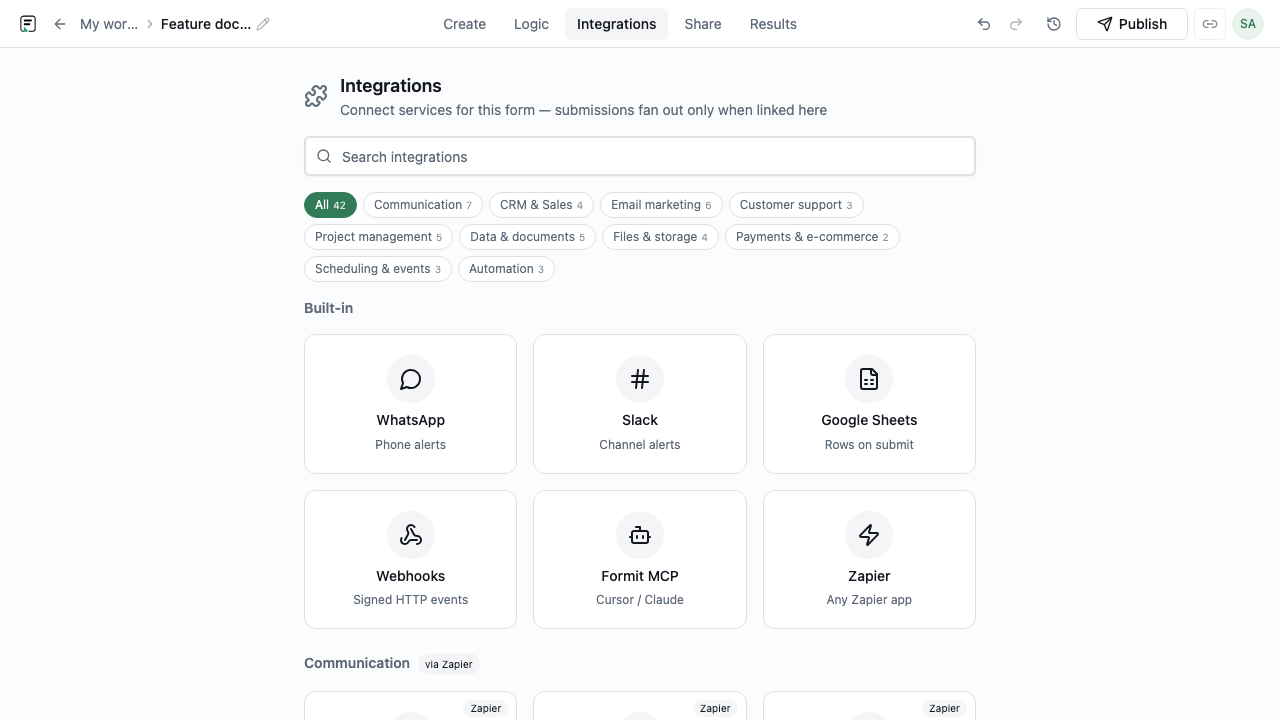
Integrations send or sync activity after someone submits. Formit supports Slack, Google Sheets and Zapier as after-submit connectors in the Integrations panel (often Business-tier). Calendly is different: it powers the in-form Schedule block via workspace OAuth (the Talent plan or higher), not a generic Slack-style registry row. Integrations are not the same as AI follow-ups, which are in-form probes during the fill.
How it works
- 1Confirm your plan includes the integration you need (often Business-tier).
- 2Open the form’s integrations or connected apps settings.
- 3Connect the destination account (Slack workspace, Sheet, Zapier, Calendly, etc.).
- 4Map fields or choose notification channels as required by the connector.
- 5Submit a test response and verify the after-submit (or booking) behavior.
- 6Publish or keep the live form running so production submissions flow through.
Key capabilities
Slack
Notify a channel or destination when submissions arrive.
Google Sheets
Send submission data to a spreadsheet for ops and reporting.
Zapier
Reach thousands of other apps from Formit after submit. WhatsApp notifications are coming soon.
Calendly (Schedule block)
Calendly connects through the Schedule block and workspace OAuth - not the same Integrations registry row as Slack. Publishing a form with a Schedule block requires the Talent plan or higher.
After-submit automation
Integrations focus on what happens after submit (plus scheduling via Calendly) - not in-form AI probes.
Benefits
- Route leads to the tools your team already monitors.
- Reduce manual copy-paste from Results into spreadsheets or chat.
- Book meetings in-flow with Calendly where Schedule blocks are used.
- Extend to niche tools through Zapier when a native connector is not enough.
Use cases
- Posting demo requests to a Slack sales channel.
- Appending research answers to a Google Sheet for analysts.
- Triggering a Zapier workflow that creates a CRM task after submit.
Example workflow
A B2B team on a Business-tier plan connects Slack and Google Sheets on a demo form. Each submit notifies #sales and appends a Sheet row. Separately, they enable AI follow-ups on a discovery question - those probes stay in-form and never replace the Slack integration.
Tips and best practices
- Test with a real submission before announcing the form internally.
- Keep field mapping lean - only send columns your destination needs.
- Remember: AI follow-ups ≠ integrations; configure each for its job.
Limitations and plan notes
- Slack, Google Sheets and Zapier after-submit connectors are often Business-tier gated.
- Calendly uses the Schedule block plus workspace OAuth (the Talent plan or higher) - not the same setup path as Slack.
- Integrations are after-submit paths - not email AI follow-ups or in-form probes.
- Destination-side permissions and API limits can still block delivery even when Formit is configured correctly.
Frequently asked questions
- Which integrations does Formit call out?
- Slack, Google Sheets, Calendly and Zapier are the available connectors. WhatsApp is shown in the app as coming soon.
- Are integrations the same as AI follow-ups?
- No. Integrations handle after-submit (or scheduling) workflows. AI follow-ups are in-form probes during the fill.
- Do I need a higher plan?
- Often yes - Slack, Google Sheets and Zapier need Business or above, and Calendly scheduling needs the Talent plan or higher. Check your plan before relying on a connector.
Try it in FormitAI
Open the builder, configure this in a real form, publish a version, and share a link or embed. Start free - when a feature needs a paid plan, the builder tells you before you publish.
Open FormitAI